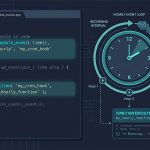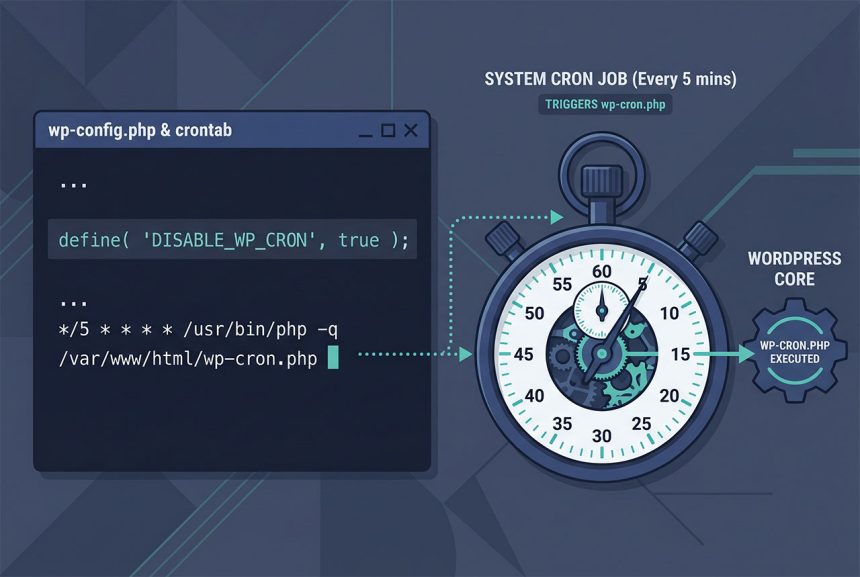
A wordpress system cron setup replaces WordPress’s traffic-triggered WP-Cron with a real OS-level cron that hits wp-cron.php at a predictable interval. On low-traffic sites this fixes the common “scheduled event didn’t fire” bug — WP-Cron only runs when someone visits, so at 2am with no traffic it just waits. This guide walks through disabling WP-Cron in wp-config.php, adding a cPanel cron entry, and picking between the wget and php -q command forms.
Last verified: 2026-04-23 on WordPress 6.5 with cPanel and a stock Ubuntu crontab. Originally published 2024-02-23, rewritten and updated 2026-04-23.
TL;DR
// 1. Disable WP-Cron in wp-config.php (above the "stop editing" line)
define( 'DISABLE_WP_CRON', true );
# 2. Add a real cron — every 5 minutes
*/5 * * * * /usr/bin/php -q /path-to-your-wp-installation/wp-cron.phpStep 1 — Disable WP-Cron
// wp-config.php — above the "That's all, stop editing!" comment
define( 'DISABLE_WP_CRON', true );
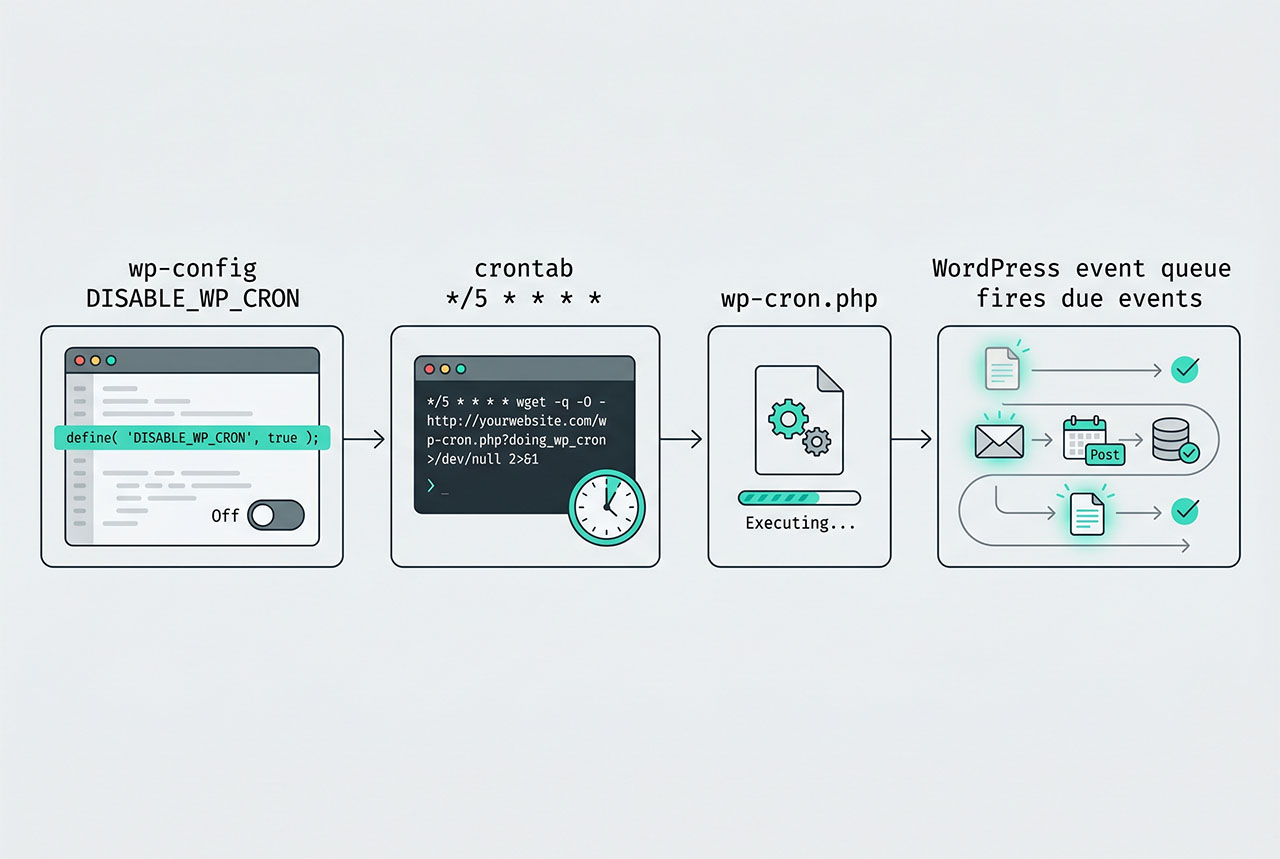
This stops WordPress from running the “any cron events due?” check on every page load. The scheduled events still exist — they just wait for something to explicitly call wp-cron.php, which your system cron is about to do.
Place the define() above the /* That's all, stop editing! Happy publishing. */ comment. The line has to run before WordPress loads its core settings.
Step 2 — Add the system cron entry
Two common command forms:
# Via PHP CLI (cleaner, bypasses the web server)
*/5 * * * * /usr/bin/php -q /path-to-your-wp-installation/wp-cron.php

# Via wget (works when PHP CLI isn't available)
*/5 * * * * wget -q -O - http://example.com/wp-cron.php?doing_wp_cron >/dev/null 2>&1
Pick PHP CLI when you can (most VPS hosts, many shared hosts with SSH). It avoids the HTTP round-trip and doesn’t get blocked by Basic Auth or IP restrictions on the site.
Pick wget when PHP CLI isn’t available — fully-managed shared hosts without SSH, hosts that restrict exec but allow outbound HTTP. The >/dev/null 2>&1 silences output so cron doesn’t email you every 5 minutes.
Via cPanel (no SSH needed)
- Log into cPanel.
- Advanced → Cron Jobs.
- Set the interval — pick Every 5 Minutes from the “Common Settings” dropdown, or manually
*/5 * * * *. - Paste one of the command forms above, replacing
example.comand the installation path with your values. - Save.
Plesk, aaPanel, and DirectAdmin have similar Scheduled Tasks / Cron Jobs UIs in the same spot.
Picking the interval
*/1 * * * *— every minute. Only when something genuinely needs minute-level precision.*/5 * * * *— every 5 minutes. Common default. Good tradeoff between responsiveness and overhead.*/15 * * * *— every 15 minutes. Fine for daily / weekly events where a 15-minute drift doesn’t matter.0 * * * *— once an hour. Risk is that any sub-hourly event fires up to 60 minutes late.
Remember: the system cron doesn’t run your WordPress events directly, it just gives WordPress a chance to fire whichever events are due. The per-event schedule (hourly, daily, custom) still comes from the wp_schedule_event call; the system cron is the heartbeat that asks WordPress to check.
Verify it’s actually firing
# WP-CLI — the cleanest check
wp cron event list

# Or check via PHP
wp eval 'var_dump(_get_cron_array());'
The Next Run column should update every time the interval ticks. If it doesn’t move, the cron isn’t firing — verify the crontab with crontab -l (CLI) or the cPanel Cron Jobs list, and check the command path is correct.
Frequently asked questions
WP-Cron only fires when someone visits the site — each request checks “anything due?” and runs the overdue events in-process. On low-traffic sites that means scheduled jobs can miss their window by hours (a 2am task doesn’t fire until the first visitor at 9am). A system cron runs at exact times regardless of traffic. Swap to it whenever precise timing matters.
DISABLE_WP_CRON actually do? It flips an internal flag that stops WordPress from checking the schedule on page loads. Scheduled events still exist — they just don’t fire until something explicitly hits wp-cron.php. Your system cron (the crontab entry below) becomes the thing that triggers the check.
wget or php -q — which should I use? php -q /path/to/wp-cron.php runs cron via the command-line PHP and bypasses the web server entirely — faster, no request/response overhead, and it works even if the site is behind auth or a firewall that would block the wget call. Use wget only when you can’t run PHP from cron (some shared hosts). Both work; CLI is cleaner when available.
Every 5–15 minutes is the sweet spot. WordPress events store their due-time; the cron just gives them a chance to fire. Running every minute is wasteful — most minutes have nothing to do. Running once an hour means a twice-daily event could fire 59 minutes late. */5 * * * * (every 5 minutes) is the common default.
Install WP-CLI and run wp cron event list — it shows every scheduled event with the next/last run timestamps. If an event’s “Next Run” keeps sliding forward by the interval each time you check, the cron is firing. The raw option get_option('cron') also exposes the schedule in wp-config.php or a quick wp eval.
Related guides
- How to Schedule a Cron Job in WordPress Without a Plugin — the sibling guide that defines the events this cron fires.
- How to Disable Revisions and Autosave in WordPress — another
wp-config.phptweak. - Fix ERR_TOO_MANY_REDIRECTS in WordPress After Switching to HTTPS — another
wp-config.phpfix. - How to Run a Laravel Project from GitHub — cron-scheduled job concepts in another framework.
References
WordPress advanced-administration on WP-Cron: developer.wordpress.org/advanced-administration/performance/cron.