WooCommerce replace dashboard with orders on the My Account page takes two small code snippets: the woocommerce_account_menu_items filter to drop (or reorder) the Dashboard tab, and a parse_request redirect so users landing on /my-account/ go straight to /my-account/orders/. The default dashboard is usually a mostly-empty page that most stores have no use for — this guide makes the My Account landing spot actually useful.
Last verified: 2026-04-23 on WooCommerce 9.x with WordPress 6.5. Originally published 2024-03-23, rewritten and updated 2026-04-23.
TL;DR
// 1. Remove the Dashboard menu item (and rename Orders to "My Orders")
add_filter( 'woocommerce_account_menu_items', function ( $items ) {
    unset( $items['dashboard'] );
    $items['orders'] = __( 'My Orders', 'how7o' );
    return $items;
}, 99 );

// 2. Redirect /my-account/ to /my-account/orders/
add_action( 'parse_request', function ( $wp ) {
    if ( is_admin() || ! is_user_logged_in() ) {
        return;
    }
    if ( $wp->request === 'my-account' ) {
        wp_safe_redirect( site_url( '/my-account/orders/' ) );
        exit;
    }
} );
Step 1 — Drop Dashboard from the menu
add_filter( 'woocommerce_account_menu_items', function ( $items ) {
    unset( $items['dashboard'] );
    $items['orders'] = __( 'My Orders', 'how7o' );
    return $items;
}, 99 );
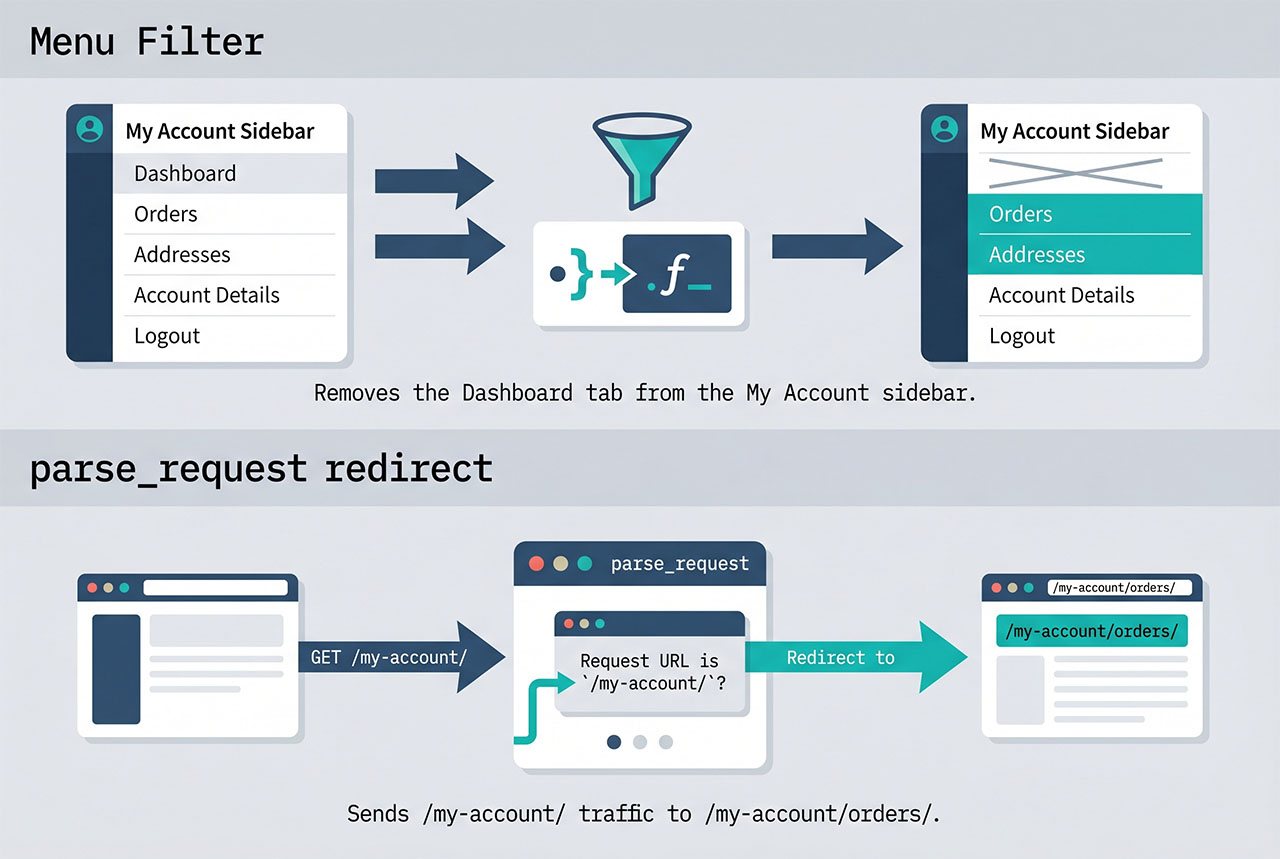
The filter passes the items array keyed by slug — dashboard, orders, downloads, edit-address, edit-account, customer-logout. unset($items['dashboard']) removes the tab entirely; after the removal, Orders is the first remaining tab. The relabel ($items['orders'] = 'My Orders') is a personal-taste touch — skip it if you want the stock “Orders” label.
Priority 99 makes sure this filter runs after any plugin that might inject its own items, so our unset reliably catches the dashboard even when other code is modifying the same array. See why priority matters with WordPress hooks for the general pattern.
Step 2 — Redirect the account root
add_action( 'parse_request', function ( $wp ) {
    if ( is_admin() || ! is_user_logged_in() ) {
        return;
    }

    if ( $wp->request === 'my-account' ) {
        wp_safe_redirect( site_url( '/my-account/orders/' ) );
        exit;
    }
} );
This catches users who land on /my-account/ from login redirects, footer links, or “Account” links in navigation. The parse_request hook fires before WordPress has resolved the template, so the redirect is cheap — no template rendering wasted.
The is_user_logged_in() check is important: without it, guests hitting /my-account/ (which normally shows the login form) would get redirected to /my-account/orders/, which redirects back to /my-account/ for anonymous users — an infinite loop. Only redirect when the user is logged in.
Alternative — just reorder, don’t redirect
add_filter( 'woocommerce_account_menu_items', function ( $items ) {
    // Move Orders to the top without removing Dashboard
    return array(
        'orders'          => __( 'Orders',        'how7o' ),
        'dashboard'       => __( 'Dashboard',     'how7o' ),
        'downloads'       => __( 'Downloads',     'how7o' ),
        'edit-address'    => __( 'Addresses',     'how7o' ),
        'edit-account'    => __( 'Account',       'how7o' ),
        'customer-logout' => __( 'Logout',        'how7o' ),
    );
}, 99 );
If you don’t want to remove Dashboard entirely — it’s where some WooCommerce plugins show notifications — just reorder the array. WooCommerce renders menu items in the array’s iteration order, so putting orders first is enough to make it the first tab.
Frequently asked questions
Two moves: remove the Dashboard menu item via the woocommerce_account_menu_items filter, and redirect /my-account/ to /my-account/orders/ via a parse_request hook. The filter makes Orders appear first in the sidebar; the redirect catches users who land on the account root from a login redirect.
Yes — return a new associative array from woocommerce_account_menu_items with the keys in your preferred order. The order WooCommerce renders is the array’s iteration order, so return ['orders' => ..., 'dashboard' => ..., 'edit-address' => ...]; puts Orders first without removing anything. The unset() + reassignment pattern is just a quick way to both remove and reorder in one callback.
parse_request for the redirect? parse_request fires early — before WordPress has fully resolved the template — so you can redirect without the target page doing any rendering work. Hooking template_redirect also works but fires a few steps later. For a straight URL-to-URL redirect, parse_request is the lighter option.
Drop the is_user_logged_in() check — with it, the redirect only fires for logged-in users (the dashboard is meaningless for guests anyway because WooCommerce shows the login form). For a custom guest flow, add an else branch that redirects anonymous users to a landing page or signup flow.
Yes — if you remove the Dashboard menu item and redirect the account root to Orders, there’s no way for a user to reach the Dashboard tab (though its URL still exists). If anything still links to /my-account/dashboard/, update those links to point at /my-account/orders/ too, or skip the redirect and only do the menu reordering.
Related guides
- How to Rename Menu Items on the WooCommerce My Account Page — sibling customization via the same filter.
- How to Add a Link or Button After the Login Form in WooCommerce — other My Account tweaks.
- How to Remove Checkout Fields in WooCommerce — similar filter-driven simplification.
- How to Display Different Menus to Logged-In Users in WordPress — login-state nav swap.
References
WooCommerce My Account endpoints: woocommerce.com/document/woocommerce-endpoints-2-1.