To zip multiple files and directories on Linux, run zip -r archive.zip file1 file2 dir1/. The -r flag tells zip to recurse into directories; without it, only top-level files are added. This guide covers the basic command, installation across distros, common flags (excludes, compression level, passwords), and when to reach for tar.gz instead.
Last verified: 2026-05-17 on Ubuntu 22.04 and AlmaLinux 9 with zip 3.0. Originally published 2022-12-24, rewritten and updated 2026-05-17.
TL;DR
# Zip several files into one archive
zip myarchive.zip file1.txt file2.txt file3.txt

# Zip a directory and everything inside it (-r = recursive)
zip -r site.zip site/

# Mix files and directories
zip -r project.zip README.md src/ tests/ assets/

# With exclusions
zip -r site.zip site/ -x 'site/node_modules/*' 'site/.git/*'
Check zip is installed
Most Linux distros ship the zip utility by default. Confirm with:
which zipIf that prints nothing, install it. On Ubuntu / Debian:
sudo apt install zipOn AlmaLinux / Rocky / RHEL / Fedora:
sudo dnf install zip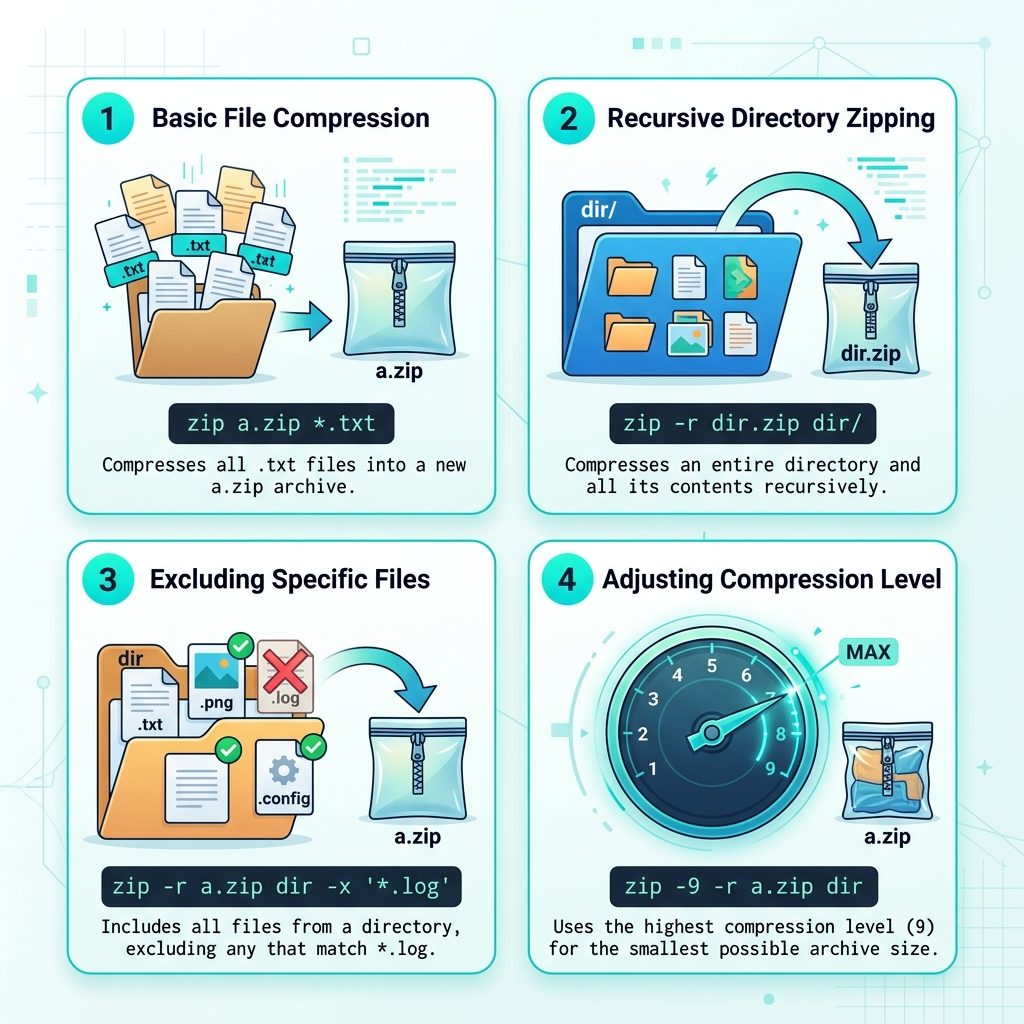
Zip files
zip myarchive.zip file1.txt file2.txt file3.txtThe first argument is the archive name; everything after is what to put in it. The archive is created in the current directory.
Zip a directory (recursive)
Pass -r to recurse into directories:
zip -r site.zip site/This packs everything under site/ (subdirectories, hidden files, the works) into site.zip. Without -r, zip only stores the top-level directory entry and skips its contents — a common gotcha.
Mix files and directories
zip -r project.zip README.md src/ tests/ package.jsonSame command, list whatever you want to include after the archive name.
Exclude files with -x
zip -r site.zip site/ -x 'site/node_modules/*' 'site/.git/*' '*.log'Each -x pattern is a glob. Quote them so the shell doesn’t expand them before zip sees them. Patterns match against the path inside the archive, not the working directory.
Compression level
The -0 through -9 flags control compression: 0 = store only (no compression, fastest), 6 = default, 9 = maximum (slowest):
# No compression — fast, no CPU
zip -0 -r snapshot.zip site/

# Maximum compression — slow, smallest file
zip -9 -r site-archive.zip site/
For pre-compressed content (JPEGs, MP4s, .gz files), -0 is usually faster and produces the same size — there’s nothing left to squeeze.
Verify and unzip
# List contents without extracting
unzip -l site.zip

# Extract everything to current directory
unzip site.zip

# Extract to a specific directory
unzip site.zip -d /tmp/restored/
Frequently asked questions
zip or tar.gz? On Linux, tar.gz is the more idiomatic choice — better compression, preserves Unix permissions and symlinks correctly, and every distro ships it by default. Use zip when the archive is going to a Windows user (Windows opens .zip natively but needs a separate tool for .tar.gz), or when a specific tool/API requires .zip format (most cloud storage and email systems prefer .zip).
zip preserve Unix file permissions? Partially — zip stores file modes in the archive, and unzip restores them on Linux. But .zip wasn’t designed for Unix-style permissions, so things like symlinks and ownership (UID/GID) don’t round-trip cleanly. For full fidelity (including symlinks), use tar.
Use the -x flag with a glob pattern: zip -r site.zip site/ -x 'site/node_modules/*' 'site/.git/*' '*.log'. Multiple -x patterns are supported, and the patterns are evaluated relative to the current directory.
Yes, with zip -e archive.zip files — you’ll be prompted for the password twice. Be aware: standard zip encryption (ZipCrypto) is weak and trivially crackable. For anything sensitive, use AES-encrypted zip with 7z (7z a -p -mhe=on archive.7z files) or encrypt the archive separately with gpg.
unzip -l archive.zip lists contents with sizes and modification times. zipinfo archive.zip gives a more detailed view including permissions and compression method per file.
Related guides
- How to List Network Devices on Linux
- How to Install Docker on AlmaLinux
- How to Check if Pure-FTPd Is Installed on Linux
References
Info-ZIP project (upstream): infozip.sourceforge.net. man zip on any Linux system with zip installed.