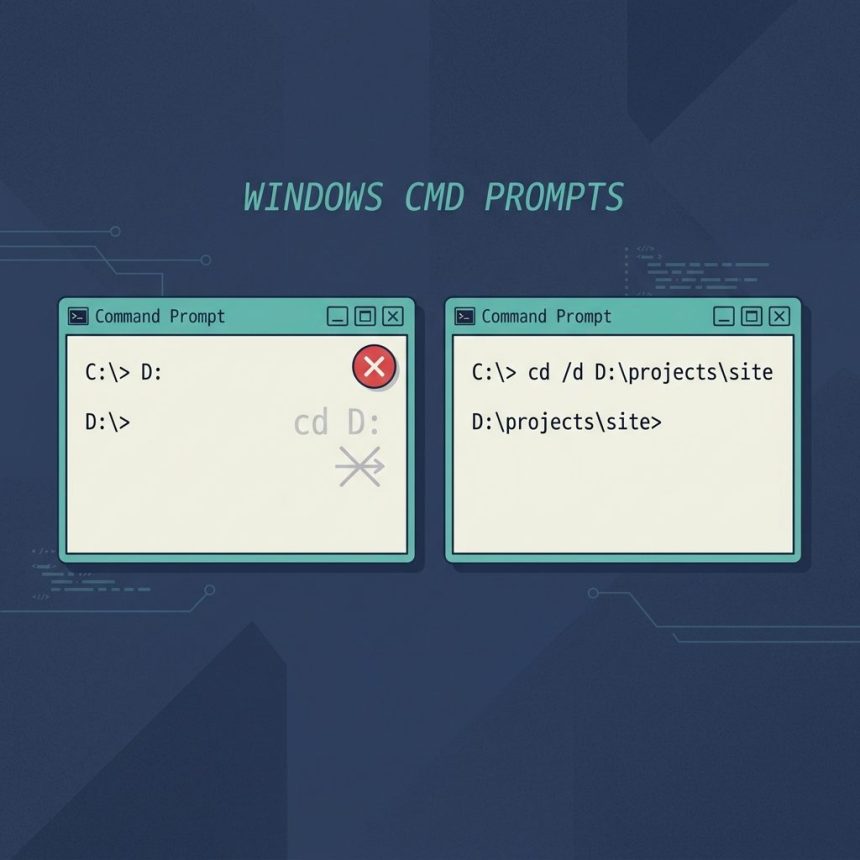
To cd to a different drive on Windows, use either the bare drive letter (D:) or cd /d D:\path. Plain cd D:\ doesn’t switch drives — it silently updates D:’s remembered directory without leaving C:. The /d flag tells cd to change both the drive and the directory.
Last verified: 2026-05-17 on Windows 11 cmd. Originally published 2022-09-30, rewritten and updated 2026-05-17.
TL;DR
:: Just switch drives, keep D:'s current directory
D:

:: Switch drive AND change directory in one go
cd /d D:\projects\site

:: cmd doesn't switch drives without /d — this is a no-op
cd D:\
The drive-letter shortcut
The fastest way to switch is to type the drive letter followed by a colon, with nothing else:
C:\Users\you> D:
D:\projects\site>
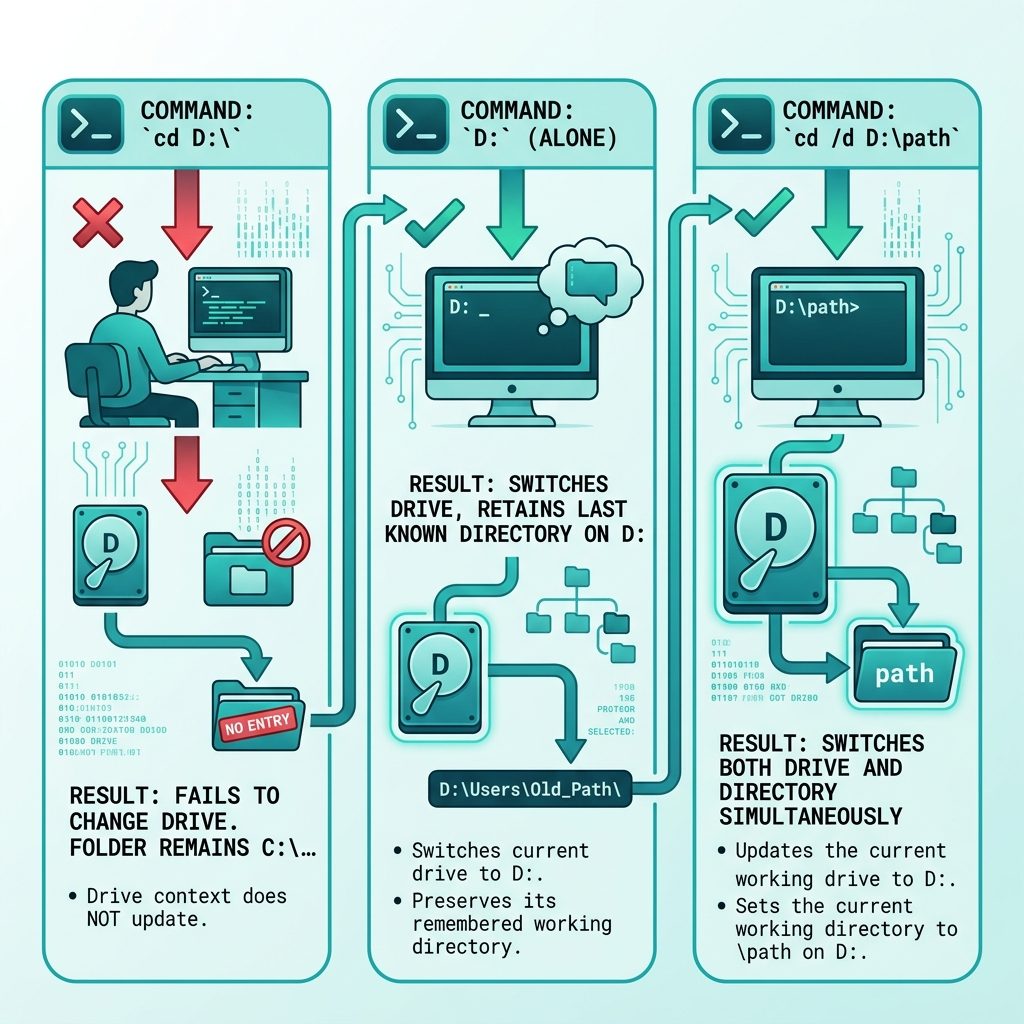
cmd switches to D: and resumes whatever directory was last current on that drive. Each drive has its own “current directory” — try cd on its own to see what cmd thinks the current directory is on the new drive.
Switch drive AND directory in one shot
cd /d D:\projects\siteThe /d flag is the only way to change both in a single cd call. Without it, cmd silently does nothing visible — exactly the behavior that trips everyone up the first time.
PowerShell users — ignore all of this
PS C:\Users\you> cd D:\projects\site
PS D:\projects\site>
PowerShell’s cd (alias for Set-Location) handles cross-drive changes natively. The /d dance only applies to classic cmd.
Frequently asked questions
cd D:\ work in Windows? Because plain cd in cmd only changes the directory on the current drive. Typing cd D:\ while sitting on C: changes what cmd remembers as D:’s current directory, but the prompt stays on C:. To actually switch drives, you either type the drive letter alone (D:) or use cd /d D:\path.
/d flag do? It tells cd to change both the drive and the directory in one command. cd /d D:\projects\site drops you straight into that path on D: regardless of which drive you started on. Without /d, cmd only changes the directory and prints nothing — a silent no-op that confuses everyone the first time.
Yes — PowerShell’s Set-Location (alias cd) handles cross-drive changes natively: cd D:\projects works without any extra flag. The /d trick is a cmd-specific workaround. If you’re using PowerShell, just cd normally.
No — cd /d X:\ with no drive X mounted returns The system cannot find the path specified. Useful as a quick check that a USB stick or network drive is actually mapped before scripts assume it’s there.
cd by itself can’t make UNC paths (\\server\share) the current directory in cmd — that’s a long-standing cmd limitation. Workarounds: map the share to a drive letter first (net use Z: \\server\share) then cd /d Z:\, or use PowerShell where Set-Location \\server\share just works.
Related guides
- How to Access MySQL from Command Line in XAMPP on Windows
- Auto-start Apache and MySQL with XAMPP on Windows
References
Microsoft Learn — cd command: learn.microsoft.com/en-us/windows-server/administration/windows-commands/cd.