How7o
  • Home
  • Tools
  • Prank Screens
  • Learn
  • Blog
  • Contact
Reading: How to Delete All Lines in a File with Vi or Vim
Share
How7oHow7o
Font ResizerAa
  • OS
Search
  • Home
  • Tools
  • Prank Screens
  • Learn
  • Blog
  • Contact
Follow US
© 2024–2026 How7o. All rights reserved.
How7o > Free Laravel, PHP, WordPress & Server Tutorials > Server Management > How to Delete All Lines in a File with Vi or Vim
Server Management

How to Delete All Lines in a File with Vi or Vim

how7o
By how7o
Last updated: May 22, 2026
4 Min Read
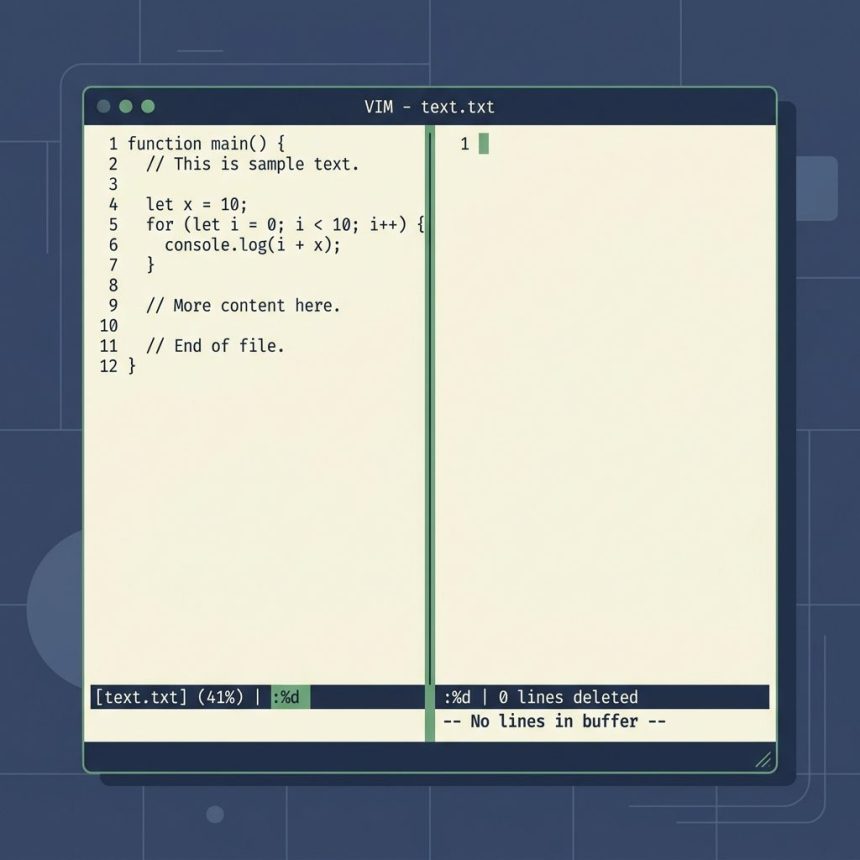
Delete all lines in Vim with :%d
SHARE

To delete all lines in a file using Vi or Vim, type :%d in normal mode and press Enter. % stands for the whole file, d for delete. The longer form :1,$d means the same thing — line 1 to the last line, deleted.

Contents
  • The shortest form
  • How it parses
  • Equivalent forms
  • Deleting a range, not the whole file
  • Save the empty buffer
  • Frequently asked questions
  • Related guides
  • References

Last verified: 2026-05-17 on Vim 9.1 and BSD vi. Originally published 2022-06-19, rewritten and updated 2026-05-17.

The shortest form

:%d

Press Esc first to make sure you’re in normal mode (not insert mode), then type :%d and hit Enter. The buffer is now empty. Save with :w to commit the change to disk.

How it parses

  • : — enters ex (command-line) mode at the bottom of the screen.
  • % — line-range shorthand for “the whole file” (equivalent to 1,$).
  • d — the delete command.
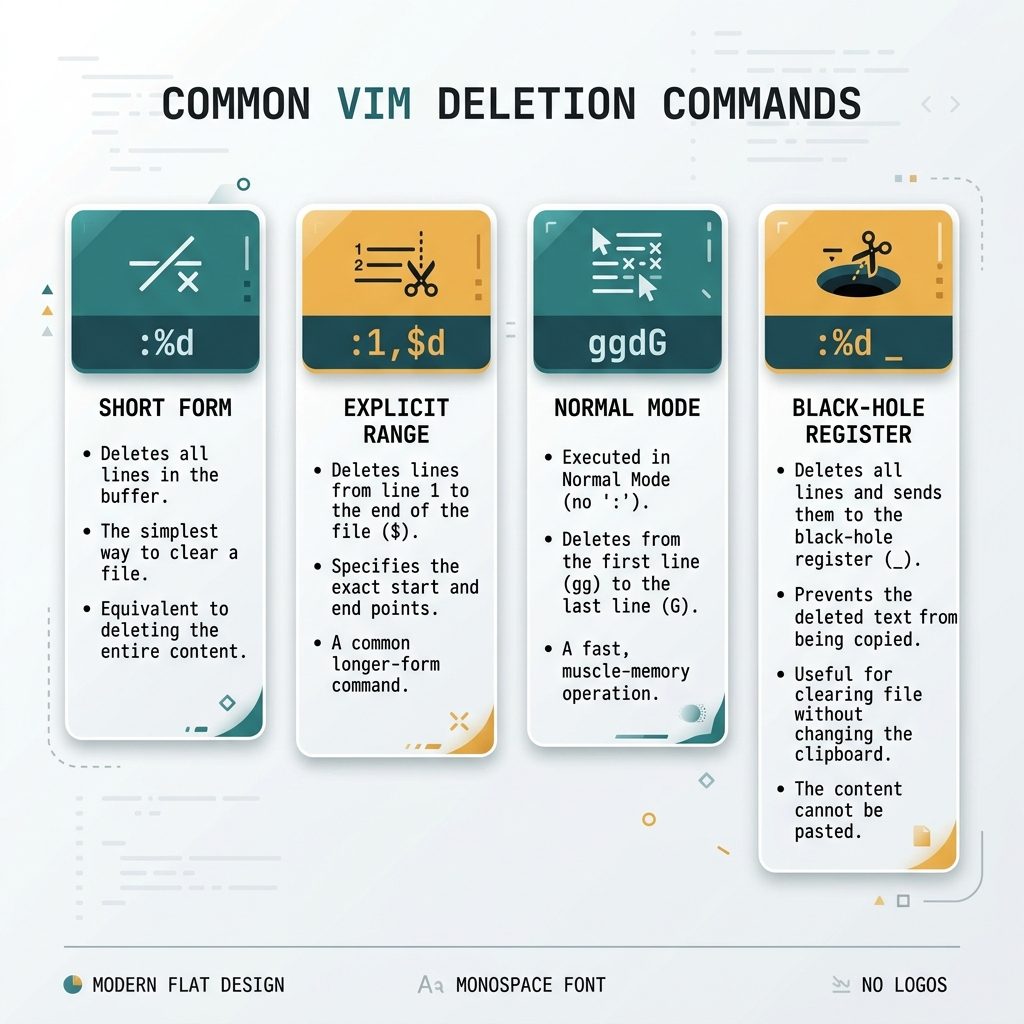
Vim delete all lines — :%d, :1,$d, ggdG, range variants

Equivalent forms

:%d           " shortest — % means "whole file"
:1,$d         " explicit — line 1 to last line
ggdG          " normal-mode: jump to top, delete to bottom
:%d _         " same as :%d but discards the deleted text (black-hole register)

ggdG is the keyboard-only version (no colon mode). :%d _ is the safe version that doesn’t clobber your yank register — useful if you’ve already yanked something you want to paste later.

Deleting a range, not the whole file

The :RANGE d form works with any line range. Examples:

:5,10d        " delete lines 5 through 10
:.,$d         " delete from current line to end
:1,.d         " delete from start to current line
:5,$-2d       " delete from line 5 to the second-to-last line (keeps last 2 lines)

Save the empty buffer

:w            " write the (now-empty) buffer to the file
:wq           " write and quit
ZZ            " normal-mode shortcut: same as :wq

Until you write, the file on disk is unchanged. If you change your mind, :q! abandons the empty buffer without saving and the file stays as it was.

Frequently asked questions

What does the % in :%d mean?

In ex (command-line) mode, % is shorthand for the entire file — equivalent to 1,$ (line 1 through the last line). It’s the same % you use in :%s/foo/bar/g for a file-wide search-and-replace.

Why use :%d _ instead of :%d?

Both delete every line. The difference is the register: bare :%d copies the deleted lines into the unnamed register ("), which means a later paste will dump the entire old file. :%d _ sends the deleted text to the black-hole register _, discarding it. If you have something useful in your yank register and want to keep it, use :%d _.

Is there a way to delete all lines without entering ex mode?

Yes — in normal mode, ggdG does the same thing. gg jumps to the first line, dG deletes from the cursor to the last line. It’s three keystrokes and a habit-builder if you’re learning vim motions.

How is this different from echo > file.txt at the shell?

echo > file.txt truncates the file from outside vim, but if you have the file open in vim, vim still holds the old contents in its buffer — saving from vim will overwrite your shell truncation. To empty the file from inside vim, use :%d and then :w to write the now-empty buffer to disk.

Related guides

  • How to Check the Linux OS Name and Version from the Command Line
  • How to Zip Multiple Files and Directories in Linux
  • How to Add and Delete Users on a Linux Server from the Terminal

References

Vim manual: :help :delete, :help :range, :help registers. Online: vimhelp.org/change.txt.html#:delete.

TAGGED:BashLinuxvim

Sign Up For Daily Newsletter

Be keep up! Get the latest breaking news delivered straight to your inbox.
[mc4wp_form]
By signing up, you agree to our Terms of Use and acknowledge the data practices in our Privacy Policy. You may unsubscribe at any time.
Share This Article
Facebook Copy Link Print
Previous Article DataTables server-side Ajax pagination with Laravel How to Create Ajax-Based Pagination in DataTables
Next Article Disable and enable a form input with JavaScript and jQuery How to Disable or Enable an Input with JavaScript or jQuery
Leave a Comment

Leave a Reply Cancel reply

You must be logged in to post a comment.

FacebookLike
XFollow
PinterestPin
InstagramFollow
Most Popular
Laravel Eloquent ORM — a model class mapping to a database table with query methods
Laravel Eloquent ORM: The Complete Guide to Querying Your Database
June 16, 2026
Set vi as the default editor in Ubuntu — a terminal opening the vim editor
How to Set vi (Vim) as the Default Editor in Ubuntu
June 8, 2026
rsync says ALL DONE but files are missing — a terminal showing ALL DONE next to an empty folder
rsync Says “ALL DONE” but Files Are Missing: How to Verify
June 8, 2026
Migrate a website to a new server with rsync — files copying from an old server to a new one over SSH
How to Migrate a Website to a New Server With rsync
June 8, 2026
Bun runtime — faster JS toolkit replacing npm in Laravel projects
How to Install Bun Runtime on Ubuntu (And Use It in a Laravel Project)
May 24, 2026

You Might Also Like

Update Ubuntu to the latest kernel version
Server Management

Update Ubuntu to the Latest Kernel Version (Safe Server Steps)

5 Min Read
MySQL top CPU usage — PROCESSLIST snapshot and performance_schema digest
Server Management

How to Check Which MySQL Database or User Is Using the Most CPU

8 Min Read
How to force quit frozen apps in Ubuntu
OS

Force Close an App in Ubuntu (xkill, System Monitor, kill -9)

4 Min Read
Nginx 502 with recv() failed 104 connection reset — PHP-FPM timeout and memory tuning
Server Management

Fix Nginx ‘recv() failed (104: Connection reset by peer)’ with FastCGI

9 Min Read
How7o

We provide tips, tricks, and advice for improving websites and doing better search.

Tools

  • Age Calculator
  • Word Counter
  • Image Upscaler
  • Password Generator
  • QR Code Generator
  • See all tools→

Pranks

  • Fake Blue Screen Prank
  • Hacker Typer
  • Fake iMessage Generator
  • Windows XP Crash Prank
  • Windows 11 Update Prank
  • See all prank screens →

Company

  • About Us
  • Blog
  • Contact
  • Privacy Policy
  • Terms of Service
  • Sitemap
© 2024–2026 How7o. All rights reserved.
Welcome Back!

Sign in to your account

Username or Email Address
Password

Lost your password?