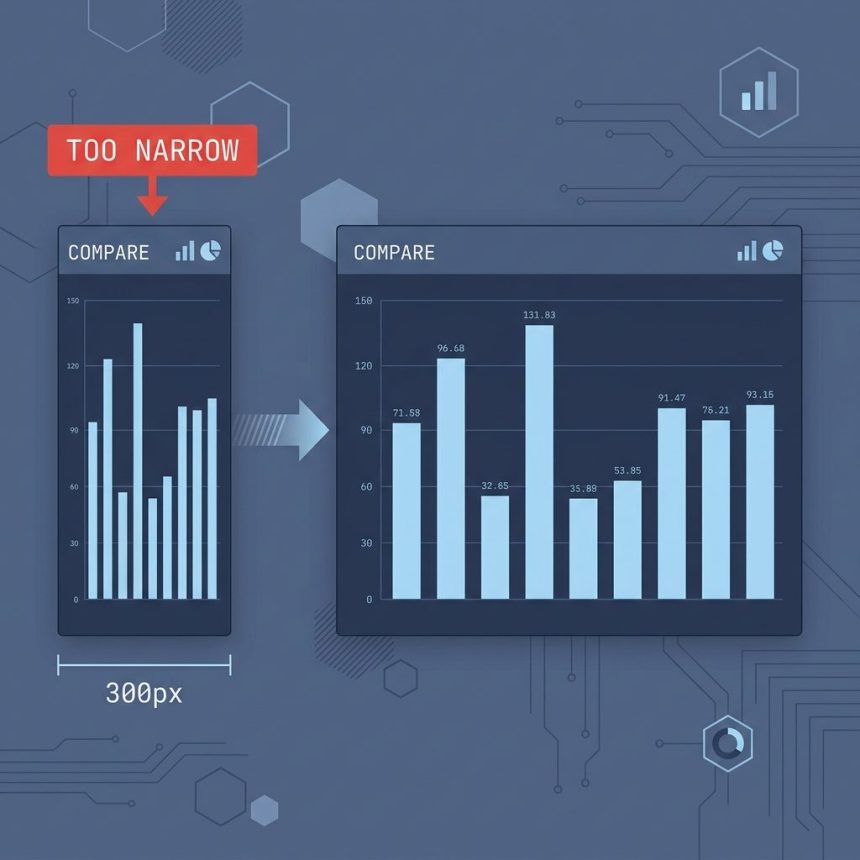
To make an ApexCharts.js chart take the full width of its parent, set chart.width: '100%' in the options — and make sure the parent element actually has a measurable width. The most common cause of a chart stuck at 300 px is that the container is display: none or has no width set when ApexCharts measures it.
Last verified: 2026-05-17 with ApexCharts 3.45. Originally published 2022-10-08, rewritten and updated 2026-05-17.
The minimal fix
const options = {
    series: [{ data: [10, 20, 30, 40] }],
    chart: {
        type:   'bar',
        height: 350,
        width:  '100%',     // <-- here
    },
    // ...
};

const chart = new ApexCharts(document.querySelector('#price-list'), options);
chart.render();
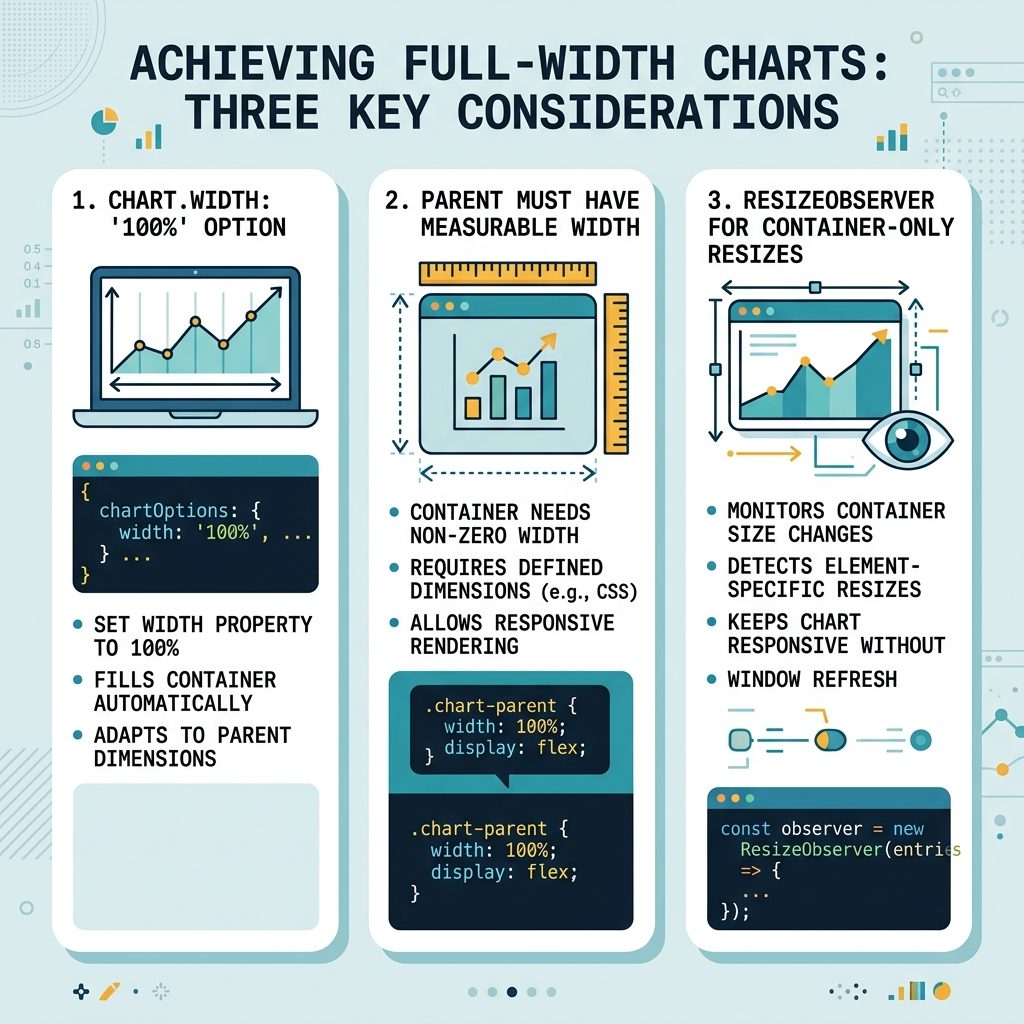
'100%' tells ApexCharts to size to the parent’s measured width at render time and re-measure on window resize. You can also use a number (e.g. 800) to lock a pixel width regardless of the parent.
If the chart is still 300 px wide
- Confirm the parent has a measurable width. Inspect the container in DevTools — if it’s
0 × 0ordisplay: noneat render time, ApexCharts falls back to 300 px. Settingwidth: '100%'on a parent with no defined width gives nothing to inherit. - Set the parent’s width or display. Add
width: 100%; display: block;on the container’s wrapper, or pin a specific size likemax-width: 800px;. - Don’t render inside a hidden element. If the chart’s container is inside a tab/modal that opens later, defer
chart.render()until that element is visible.
JavaScript fallback: pass the measured parent width
const el = document.querySelector('#price-list');
const options = {
    series: [{ data: [10, 20, 30, 40] }],
    chart: {
        type:  'bar',
        height: 350,
        width: el.parentElement.offsetWidth,
    },
};

const chart = new ApexCharts(el, options);
chart.render();
Use this when CSS can’t give the container a width but JS knows the parent’s width at render time. Note this is a one-shot measurement — for live resize, use a ResizeObserver.
Redraw on container resize (not just window resize)
const el    = document.querySelector('#price-list');
const chart = new ApexCharts(el, { /* options with width: '100%' */ });
chart.render();

new ResizeObserver(() => {
    chart.updateOptions({}, false, true);   // false = no animations, true = redraw
}).observe(el.parentElement);
ApexCharts only re-measures on window resize by default. A ResizeObserver handles container-only resizes (sidebar collapsing, tab switching, drawer opening) without needing a window resize event.
Inside a Bootstrap modal
// Defer rendering until the modal is fully shown
const chart = new ApexCharts(document.querySelector('#price-list'), options);

$('#myModal').on('shown.bs.modal', () => chart.render());
Hidden modal contents have no measurable width — render after the modal is visible.
Frequently asked questions
When ApexCharts can’t determine the container’s width (because the container is display: none, hasn’t been laid out yet, or is inside a flex/grid item without an explicit width), it falls back to a 300px default. Make sure the container is visible and has a real width — usually fixing the parent CSS is the cleanest path.
width: '100%' and an explicit number? '100%' tells ApexCharts to size to the parent’s measured width at render time and re-measure on window resize. A number (e.g. 800) locks the chart to that pixel width regardless of the parent. For responsive layouts use '100%'; for fixed widgets (export-ready, exact-size mockups) use a number.
ApexCharts only listens for the window resize event. For container-size changes (sidebar collapsing, tab switching), use a ResizeObserver on the container and call chart.updateOptions({}, false, true) when it fires. The third argument true triggers a redraw without animations.
When the modal opens, the chart’s container starts at display: none, so ApexCharts can’t measure it. Defer creation to the modal’s shown.bs.modal event so the container is visible and sized first: $('#myModal').on('shown.bs.modal', () => chart.render());.
Related guides
References
ApexCharts options: apexcharts.com/docs/options/chart/width. ApexCharts methods (updateOptions): apexcharts.com/docs/methods. MDN ResizeObserver: developer.mozilla.org/en-US/docs/Web/API/ResizeObserver.