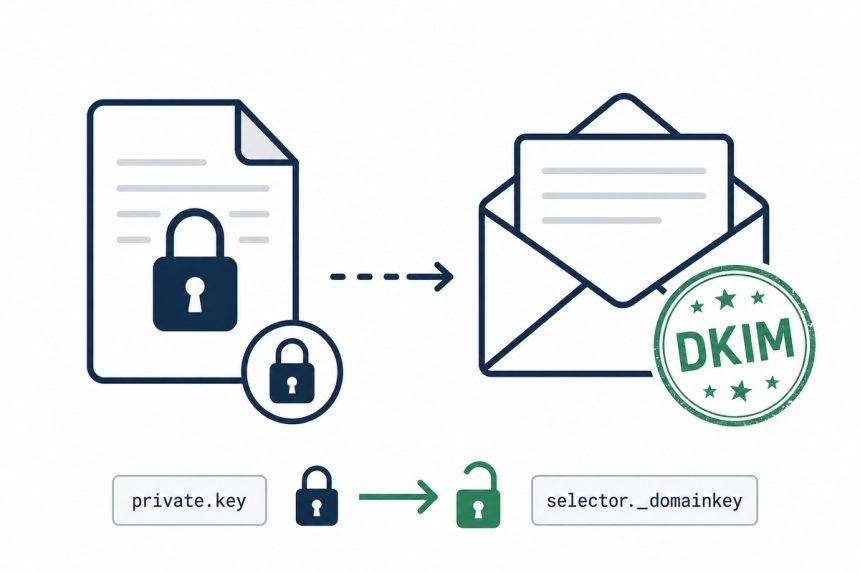
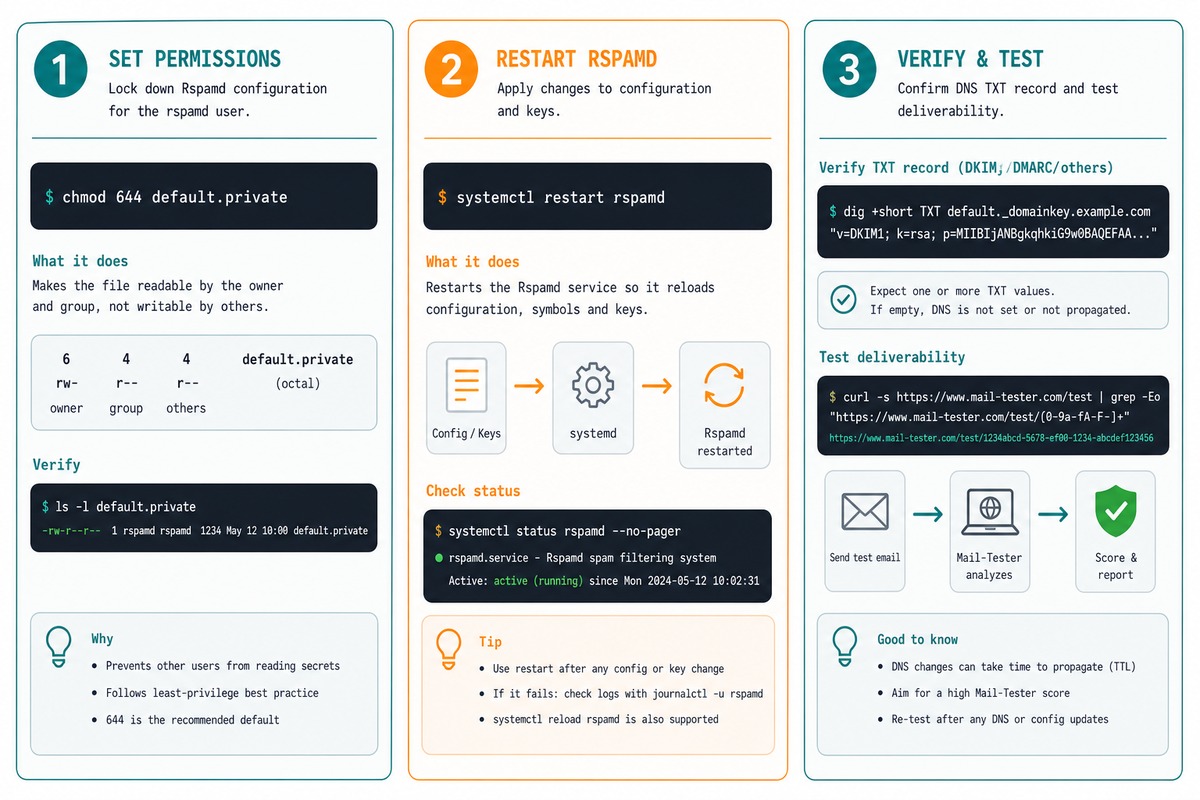
If aaPanel emails aren’t signed with DKIM even though the domain is set up correctly, the most common cause is a permission problem on the private key file. rspamd (the milter that signs outgoing mail) can’t read /www/server/dkim/example.com/default.private because its permissions are too tight. chmod 644 on the file plus an rspamd restart fixes it.
Last verified: 2026-05-17 on aaPanel 7 with rspamd. Originally published 2022-09-19, rewritten and updated 2026-05-17.
Confirm the cause first
sudo tail -n 100 /var/log/rspamd/rspamd.log | grep -i dkimLook for a line like:
dkim_module_load_key_format: cannot load dkim key
/www/server/dkim/example.com/default.private:
cannot map key file: '/www/server/dkim/example.com/default.private' Permission denied
That’s the signature of this exact problem. If the log shows a different error (key not found, DNS issue), see the DNS section below instead.
Fix the permissions
# Replace example.com with your actual domain
sudo chmod 644 /www/server/dkim/example.com/default.private

# Restart rspamd
sudo /etc/init.d/rspamd restart
# or with systemd
sudo systemctl restart rspamd
Send a test email after the restart and check the headers — the DKIM-Signature header should now appear, and Authentication-Results should show dkim=pass.
Or do it from the aaPanel UI
- aaPanel sidebar → Files.
- Navigate to
/www/server/dkim/example.com/. - Right-click
default.private→ Permissions. - Set the permission to
644, click Save. - Restart rspamd from Software Store or via SSH.
Confirm DNS publication is also done
# Show the TXT record value to publish
sudo cat /www/server/dkim/example.com/default.txt

# Verify the DNS record from your server
dig TXT default._domainkey.example.com +short
The public key has to be published as a TXT record at default._domainkey.example.com. Without it, rspamd will sign outgoing mail but receivers can’t verify the signature — so the test tool still reports “DKIM missing.” Make sure both the private-key file is readable and the public-key DNS record is live.
Test the result
- Send a test mail to mail-tester.com or mailgenius.com; both inspect DKIM, SPF, and DMARC for the message.
- Or send to your own Gmail and click Show original — look for
dkim=passin theAuthentication-Resultsheader.
Frequently asked questions
Check the rspamd log: tail -n 50 /var/log/rspamd/rspamd.log | grep -i dkim. The classic line is dkim_module_load_key_format: cannot load dkim key /www/server/dkim/example.com/default.private: Permission denied. If you see that, the fix below is for you. If the error is different (“cannot map key file” with no permission detail, or “no DNS record found”), the cause is elsewhere — check the DNS publish step and the key path.
chmod 644 fix this rather than 600? rspamd runs as the _rspamd user, which isn’t in the same group as the file’s owner. 600 (owner-only) blocks rspamd; 640 (owner + group) blocks too if rspamd isn’t in that group. 644 (owner + group + other read) lets rspamd read the file. Strictly speaking, the right fix is adding _rspamd to the file’s group and using 640; 644 is the pragmatic shortcut that aaPanel guides recommend.
Possibly — package updates can rewrite key files with default permissions (640). If you hit this again after an update, re-run the chmod or set up a small cron that asserts the permission: * * * * * find /www/server/dkim -name '*.private' -not -perm -044 -exec chmod 644 {} \;. Ugly but durable.
cat /www/server/dkim/example.com/default.txt prints the TXT record value you publish at default._domainkey.example.com. Publish it, wait for DNS propagation, then test with mail-tester.com or mailgenius.com. The DKIM signature should appear in the Authentication-Results header of test mails.
Related guides
- How to Access aaPanel Using a Domain and SSL
- How to Retrieve the MySQL Root Password in aaPanel
- How to Fix Quotas in cPanel
References
aaPanel docs: aapanel.com/new/help.html. rspamd DKIM signing module: rspamd.com/doc/modules/dkim_signing.html. DKIM RFC 6376: rfc-editor.org/rfc/rfc6376.