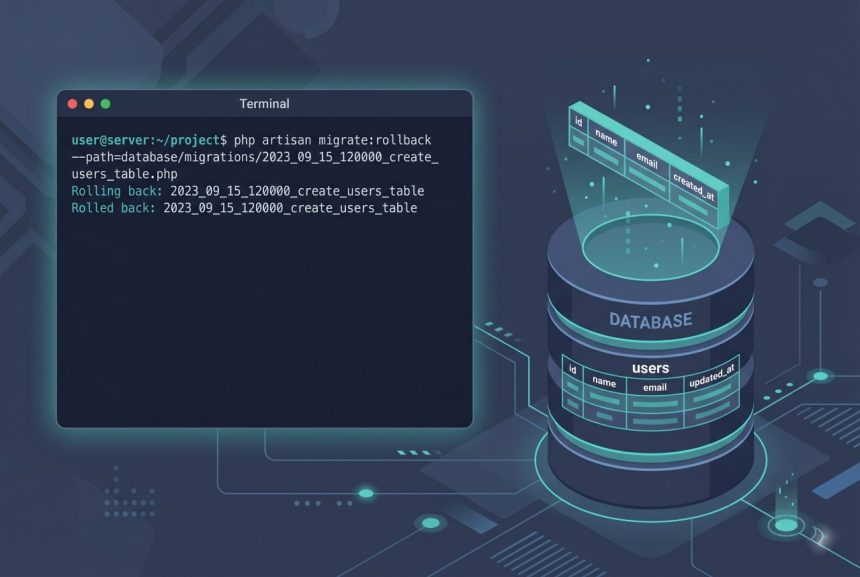
A laravel rollback specific migration is a one-line Artisan command, but which flag you pick depends on what \”specific\” means: the single most recent migration, the last N batches, or exactly one file by path. Laravel 11 supports all three via migrate:rollback with --step and --path, and this guide walks through each variant, explains why the --path argument must be relative to the project root, and covers the migrate:fresh / migrate:refresh traps that destroy data if you run them without thinking.
Last verified: 2026-04-21 on Laravel 11 with PHP 8.3. Originally published 2023-01-30, rewritten and updated 2026-04-21.
TL;DR
To roll back one specific migration file, pass its project-root-relative path: php artisan migrate:rollback --path=database/migrations/2022_08_31_165946_create_budget_entries_table.php. To roll back the most recent batch only, use php artisan migrate:rollback --step=1. Never use migrate:fresh in production — it drops every table.
Option 1 — Roll back by path: --path
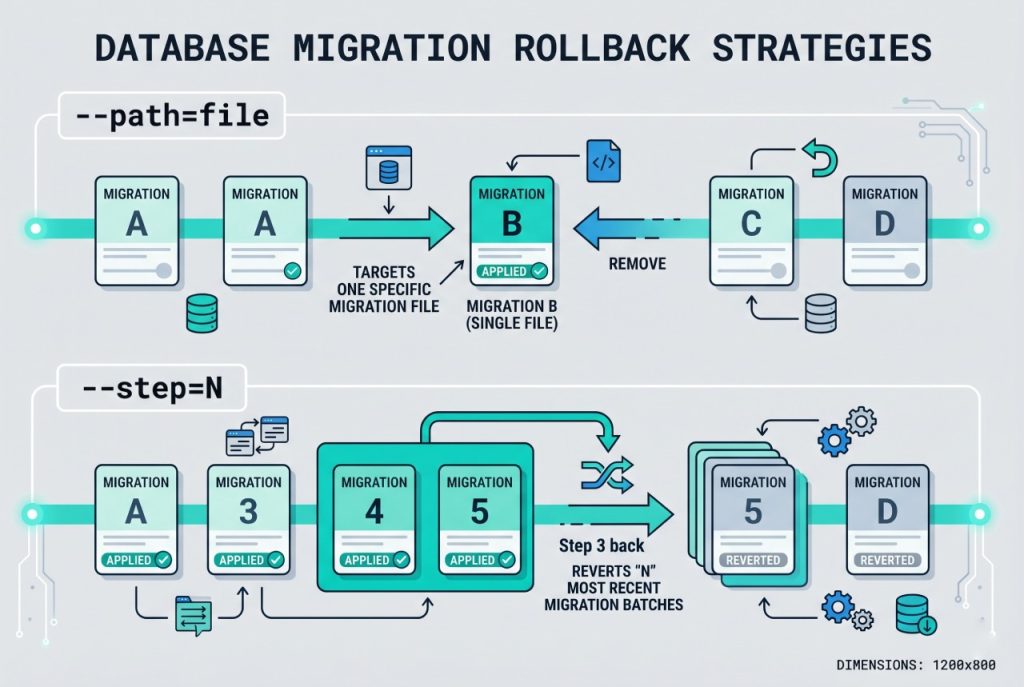
When you want to revert exactly one file — because it’s the only one you’re iterating on, or because its batch contains other migrations you don’t want to touch — point Artisan at the file:
php artisan migrate:rollback --path=database/migrations/2022_08_31_165946_create_budget_entries_table.phpLaravel reads the file, runs its down() method, and removes the row from the migrations table. On Windows the path separator is a backslash: --path=database\migrations\2022_08_31_165946_create_budget_entries_table.php. Linux, macOS, and WSL all use the forward-slash form shown above.
The path must be relative to the project root. Laravel resolves --path against the application’s base path internally, so passing an absolute path like /var/www/myapp/database/migrations/... will not match any entry in Laravel’s migration registry and the command quietly does nothing. If a rollback “runs cleanly but nothing changed,” this is the first thing to check.
Option 2 — Roll back the last batch: --step
If you just ran php artisan migrate and immediately realized the new migration is wrong, --step=1 is the fastest undo:
php artisan migrate:rollback --step=1This reverts the most recent migration batch — every file that was applied in the last migrate run, identified by the batch column in the migrations table. Increase the number to roll further back: --step=2 reverts the last two batches, --step=3 the last three, and so on.
Watch the batch granularity: if your last migrate applied five files at once, --step=1 reverts all five, not just the most recent one. Use migrate:status (below) to see the batch grouping before rolling back.
Check before you roll: migrate:status
Before any rollback, run migrate:status to confirm what’s actually applied:
php artisan migrate:statusIt prints a table with each migration file, a Ran? column (Yes/No), and a Batch column. This is the fastest way to spot that the file you’re about to target isn’t recorded as applied — in which case --path will silently no-op.
The migrate:refresh / migrate:fresh warning
Two adjacent commands look similar and do very different things:
# Rolls back EVERY migration in reverse, then re-runs them
php artisan migrate:refresh

# DROPS every table in the database, then re-runs every migration from scratch
php artisan migrate:fresh
Both destroy data. migrate:refresh at least calls each migration’s down() method, so you’d hope schema-level assumptions still hold. migrate:fresh skips down() entirely and calls SQL DROP TABLE on every table Laravel knows about — including ones from other developers’ in-flight migrations.
Neither belongs anywhere near production. Treat them as local-only dev tools for “my DB state drifted, I want a clean reset.” If you need to undo a single migration on production, stick to migrate:rollback --step=1 or --path.
What happens if down() is incomplete
Rollback only does what your migration’s down() method tells it to. If the up() method added a column and the down() method forgot to drop it, rollback leaves the column in place and removes the row from the migrations table — so the schema is inconsistent. This is a silent failure mode.
Always write symmetrical down() methods. For a column add via $table->string('code'), the down() should call $table->dropColumn('code'). For foreign keys, see adding foreign keys in Laravel migration — the drop order matters.
Frequently asked questions
php artisan migrate:rollback --step=1 reverts only the most recent migration batch. For a specific file, use php artisan migrate:rollback --path=database/migrations/2022_08_31_165946_create_budget_entries_table.php. The --path is relative to the project root — Laravel won’t accept an absolute path.
--step actually work? --step=1 rolls back the last batch, --step=2 rolls back the last two batches, and so on. A “batch” is the group of migrations applied in a single php artisan migrate run, recorded in the migrations table’s batch column. If your last migrate applied five files at once, --step=1 reverts all five — not just one file.
--path rollback do nothing? Two usual causes. First, you passed an absolute path (starting with /) instead of a project-root-relative one; Laravel looks it up against its migration registry and gets no match. Second, the file isn’t recorded in the migrations table as run — so there’s nothing to roll back. Check with php artisan migrate:status.
migrate:refresh and migrate:fresh? migrate:refresh rolls back every migration in reverse order and then re-runs them, preserving the structure of the process. migrate:fresh drops every table in the database and re-runs migrations from scratch. Both destroy data. Never run migrate:fresh against production — it’s a dev-only tool.
php artisan migrate:status prints a table of every migration file and whether it’s been applied (Ran? column) and in which batch. It’s the fastest way to confirm the state before running a rollback — especially on a shared dev DB where you didn’t run the last migrate yourself.
Related guides
- How to Install Laravel on Ubuntu — set up Laravel 11 and Artisan before touching migrations.
- How to Add Foreign Keys in Laravel Migration — write the foreign-key pair your
down()needs to drop cleanly. - How to Add New Columns to an Existing Table in Laravel Migration — the symmetrical up/down pattern for schema additions.
- Change a MySQL Column Data Type Using Migration in Laravel — rollback-friendly column type changes.
References
Official Laravel migrations docs (rollback, refresh, fresh, status): laravel.com/docs/migrations.