If you’ve installed XAMPP on Windows and tried to run the xampp mysql command line tool from Command Prompt, you’ve probably seen this error:
'mysql' is not recognized as an internal or external command,
operable program or batch file.
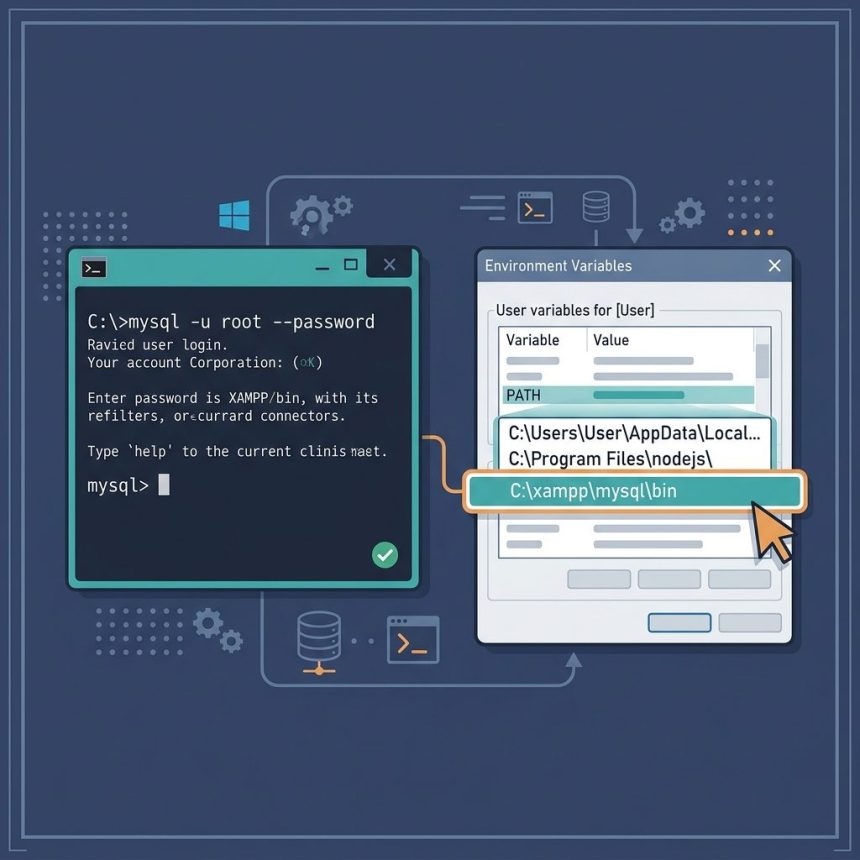
The cause is simple: Windows doesn’t know where mysql.exe lives because XAMPP doesn’t add it to your PATH. There are two ways to fix it — a quick fix for occasional use and a permanent fix for daily use. This guide walks through both, plus the "new cmd window" gotcha that catches almost everyone the first time.
Last verified: 2026-05-17 on XAMPP for Windows with MariaDB 10.4+. Originally published 2022-12-06, rewritten and updated 2026-05-17.
TL;DR
Either cd into C:\xampp\mysql\bin before running mysql, or add that folder to your Windows PATH so the command works from anywhere.
:: Quick fix: change directory then run
cd C:\xampp\mysql\bin
mysql -u root --password

:: Permanent fix: add C:\xampp\mysql\bin to System PATH
:: ...then in a NEW cmd window:
mysql -u root --password
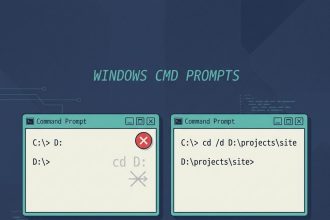
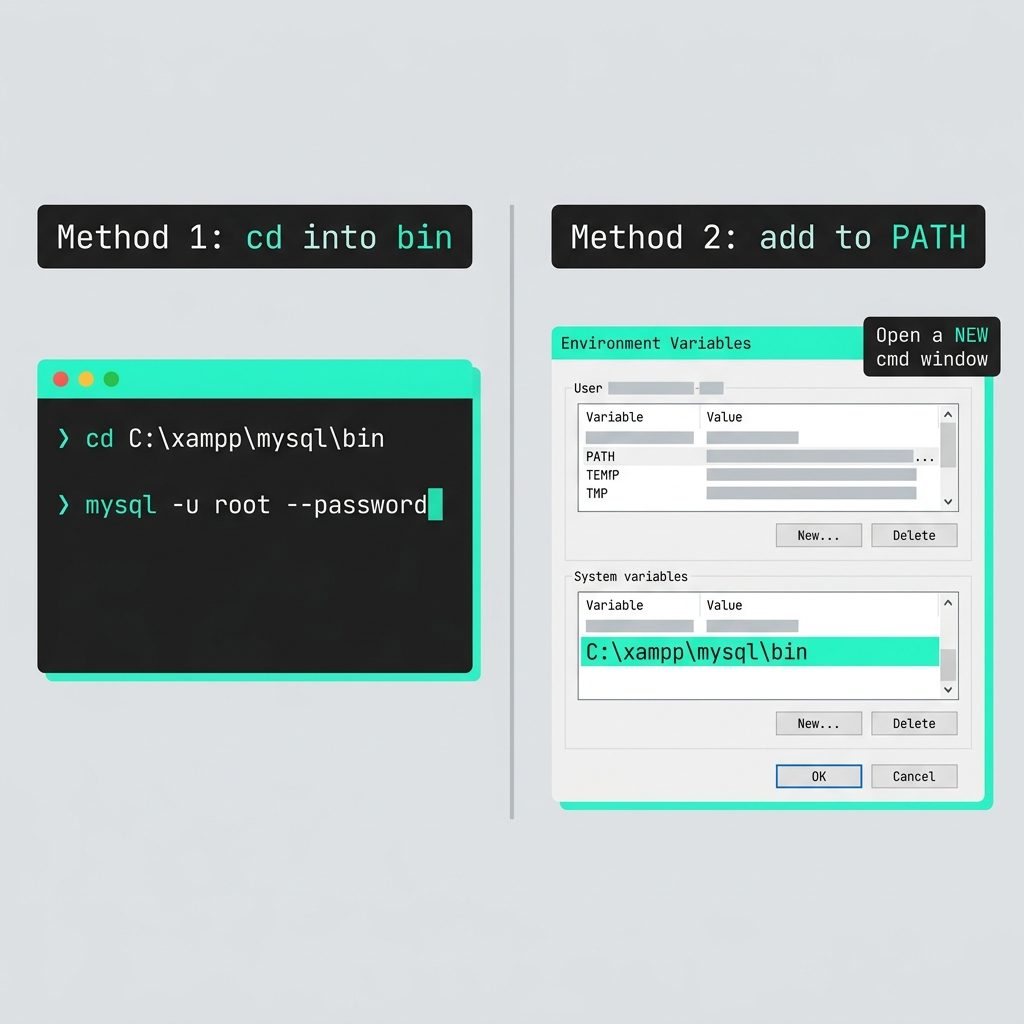
Method 1 — cd into the MySQL bin folder
The fastest fix is to navigate to where mysql.exe lives before running the command. With the default XAMPP install path, that’s C:\xampp\mysql\bin.
cd C:\xampp\mysql\bin
mysql -u root --password
Press Enter at the password prompt — XAMPP installs MySQL with no password on the root account by default, so a blank password works out of the box. You should drop into the mysql> shell.
This works every time but is awkward if you use MySQL often: every new cmd window opens in your home directory, so you have to cd there again. For daily use, Method 2 is better.
Method 2 — Add XAMPP MySQL to your Windows PATH
Once C:\xampp\mysql\bin is in your PATH, the mysql command works from any folder in any cmd window. Three steps.
Open Environment Variables
Press the Windows key and type Environment Variables, then click Edit the system environment variables. In the System Properties window that opens, click the Environment Variables… button.
Edit the Path variable
In the lower section (“System variables”), select Path and click Edit. Click New and paste the XAMPP MySQL bin path:
C:\xampp\mysql\binOr, if you’d rather not hard-code the drive letter, use the %systemDrive% environment variable instead:
%systemDrive%\xampp\mysql\binClick OK on all three dialogs to save.
Open a NEW Command Prompt
This is where most people get stuck. PATH is read once when each cmd process starts, so any cmd window already open before the edit still uses the old value. Close those windows and open a fresh Command Prompt, then run:
mysql -u root --passwordThat should drop you into the MySQL shell from any folder.
Troubleshooting
“mysql” still not recognized after editing PATH
Confirm you opened a new cmd window after saving the change. To verify PATH actually contains the bin folder, run echo %PATH% in the new window and look for xampp\mysql\bin in the output. If it’s missing, re-do Method 2 — it’s easy to add the entry under “User variables” when you meant “System variables” (both work, but only within their own scope).
XAMPP installed somewhere other than C:\xampp
Replace C:\xampp with your actual install path everywhere it appears. The MySQL bin folder will sit inside that. For example, if XAMPP lives at D:\dev\xampp, use D:\dev\xampp\mysql\bin. The XAMPP Control Panel displays the install path in its title bar.
Access denied for user ‘root’@’localhost’
This is a different problem — MySQL is reachable but the credentials don’t match. XAMPP installs MySQL with an empty root password by default, so press Enter at the prompt. If you’ve run XAMPP’s security script and set a password, pass it after --password=:
mysql -u root --password=yourpasswordFrequently asked questions
'mysql' is not recognized as an internal or external command? Because the mysql.exe binary that ships with XAMPP lives at C:\xampp\mysql\bin, but Windows doesn’t add that folder to your PATH automatically. When you type mysql in Command Prompt, Windows scans every directory listed in PATH and can’t find the executable, so it reports the binary as missing. Two fixes work: cd into the bin folder first, or add it to PATH permanently.
With XAMPP’s default Windows install path it’s C:\xampp\mysql\bin. If you installed XAMPP to a different drive or folder, look for the mysql\bin subfolder inside your XAMPP install directory — the XAMPP Control Panel shows the install path in its title bar.
No — just close and reopen Command Prompt. PATH is read when each cmd.exe process starts, so windows already open before the edit will keep using the old value. A fresh cmd window picks up the new PATH immediately, without a reboot.
Empty. Press Enter at the password prompt, or use mysql -u root --password= with nothing after the equals sign. If you’ve run XAMPP’s security script (setup_xampp.bat or the web-based XAMPP Security wizard) and set a password there, use that password instead.
Yes. XAMPP also ships HeidiSQL on Windows, and you can install MySQL Workbench separately — both provide a GUI for browsing tables and running queries. The command-line client is still useful for scripting, quick one-off queries, and remote sessions where you only have SSH access.
Related guides
- How to Export and Import All MySQL Databases at Once
- How to Check Which MySQL Database Is Using the Most CPU
- How to Create Users and Grant Privileges in MySQL 8 on Ubuntu
References
MySQL mysql client docs: dev.mysql.com/doc/refman/8.0/en/mysql.html. Windows environment variables reference: learn.microsoft.com/en-us/windows/win32/procthread/environment-variables.