To fix broken quotas in cPanel when users see “your account may be over its quota” despite having free space, run /usr/local/cpanel/scripts/fixquotas as root over SSH. It rebuilds the kernel quota database from actual file ownership and clears the stale state that’s making cPanel report wrong usage.
Last verified: 2026-05-17 on cPanel & WHM 118 with CloudLinux 8. Originally published 2023-12-12, rewritten and updated 2026-05-17.
The quick fix — fixquotas
sudo /usr/local/cpanel/scripts/fixquotasSSH in as root (or use sudo), run the script, wait for it to finish. The script remounts the filesystems with quotas enabled, scans the home filesystems’ inode ownership, and rebuilds the aquota.user / aquota.group files. Once it’s done, the cPanel disk-usage indicator updates to match reality.
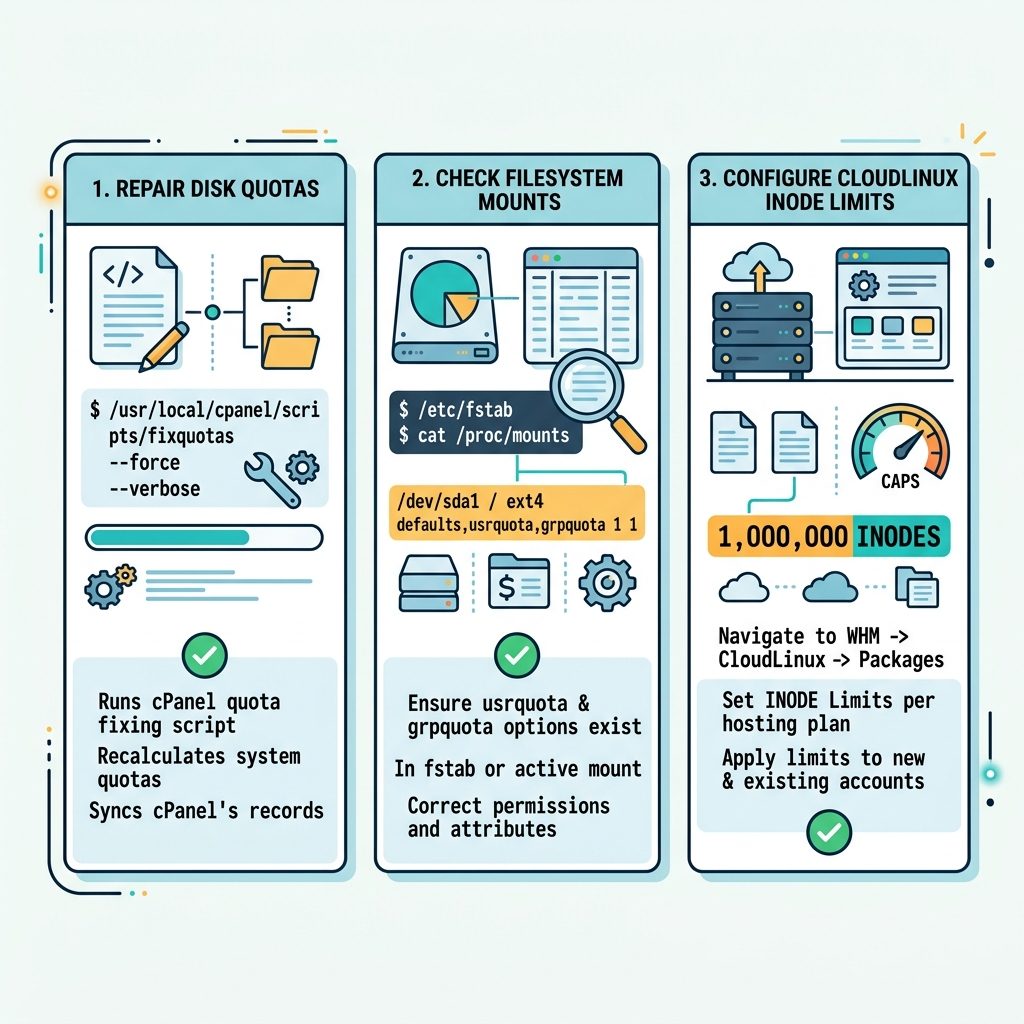
Before fixquotas — verify the configuration
- Confirm the home filesystem is mounted with quotas on.
Ifmount | grep -E 'usrquota|grpquota'/homeisn’t in the output, edit/etc/fstabto addusrquota,grpquotato its mount options, thenmount -o remount /home. - Check the package’s quota and inode limits in WHM. Home → Packages → Edit a Package — set the Disk Quota high enough to match what you sold the customer, and on CloudLinux servers set INODES to a sensible value (10,000–100,000 is common per account).
- Confirm the user account isn’t actually full. WHM → List Accounts shows current disk and inode usage; compare to the package limits.
CloudLinux: INODES is a separate cap
If you run CloudLinux on the cPanel server, the inode limit (number of files) is enforced separately from disk-space quota. An account with 5 GB free can still be blocked from uploading a single tiny file when it hits the inode cap — and the error message is identical to “over quota.” Check WHM → Packages → Edit a Package → Resource Limits → INODES and raise the limit if needed.
Verifying the fix worked
# Show quota usage for a specific user
sudo quota -u username

# Show every user's usage on /home
sudo repquota /home
The reported usage should match what du -sh /home/username shows. If the numbers still disagree by a wide margin, the quota database is still stale — re-run fixquotas with an explicit force flag (--force) or reboot the server during a maintenance window.
Frequently asked questions
cPanel reads disk usage from the kernel quota system, not from du. If the quota database (aquota.user) is stale, corrupted, or the file system was mounted without quotas, cPanel will report the wrong number even though the disk is fine. The fixquotas script rebuilds the quota database from actual file ownership, which clears stale states.
fixquotas need the server to be in maintenance mode? No, it runs on a live server. The script remounts the relevant filesystems with quotas on, scans inode ownership, and rebuilds the user/group quota files. It can take minutes on a busy server with many small files. Users will not be kicked off; their upload errors clear as soon as the rebuild finishes.
fixquotas doesn’t change anything? Check three things: (1) the home filesystem is actually mounted with quotas — mount | grep quota should show usrquota/grpquota; (2) the package’s quota and inode limits are higher than the user’s actual usage in WHM → Modify an Account; (3) on CloudLinux servers, inode limits (LVE/CageFS) are a separate cap — set INODES properly in WHM → Packages or per-account.
Most operators don’t — fixquotas is meant as a remediation tool, not a scheduled task. Running it nightly hides the underlying cause (filesystem mounted wrong, package misconfiguration). Fix the root cause and run fixquotas once. If you genuinely need recurring runs, cap it to weekly and watch the server’s logs for the trigger.
Related guides
- How to Add a User to CageFS in CloudLinux cPanel
- How to Access aaPanel Using a Domain and SSL
- How to Retrieve the MySQL Root Password in aaPanel
References
cPanel fixquotas: docs.cpanel.net/whm/server-configuration/disk-quotas. CloudLinux INODES: docs.cloudlinux.com/lve_manager. Linux quota tools: man quota, man repquota.